> ## Documentation Index
> Fetch the complete documentation index at: https://docs.greetmate.ai/llms.txt
> Use this file to discover all available pages before exploring further.
# Agent Settings
> Configure your new voice agent in under 5 minutes
## Agents
Each agent in Greetmate is a separate entity that can be configured to handle different types of calls. You can create multiple agents to handle different types of calls, such as sales, support, or billing.
### Edit an agent
1. Go to the [Agent Overview](https://www.greetmate.ai/bot/settings)
2. Click Edit
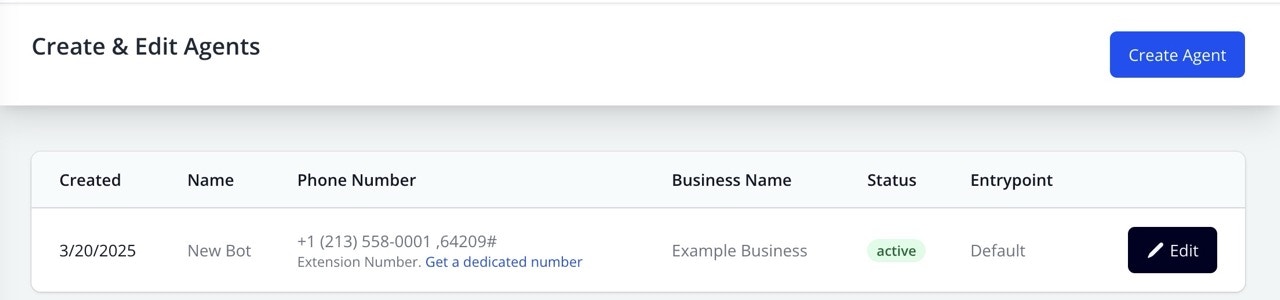 You can find your bot's extension number in the dashboard. This number is unique to your bot and can be used to make calls. Upon calling the generic number you'll have to enter the extension number to reach your bot.
### Make the agent yours
Follow the steps below to make the agent yours:
You can find your bot's extension number in the dashboard. This number is unique to your bot and can be used to make calls. Upon calling the generic number you'll have to enter the extension number to reach your bot.
### Make the agent yours
Follow the steps below to make the agent yours: